

If your website is not showing up in search results, Google Search Console errors are often the culprit.
These technical issues can prevent Google from crawling, indexing, or ranking your pages.
Technical SEO issues don’t fix themselves.
- A 404 error today becomes a ranking drop tomorrow.
- A server timeout this week becomes reduced crawl frequency next week.
The compounding effect of unresolved errors gradually erodes your organic visibility while you wonder why traffic keeps declining.
The good news is that most Google Search Console errors are straightforward to identify and fix once you know what to look for. The framework in this guide gives you a starting point for prioritizing your efforts and systematically addressing issues.
If you need expert help, our technical SEO services include comprehensive GSC audits and ongoing monitoring.
Critical GSC errors that need immediate attention
Some errors directly block Google from accessing your content. These should be at the top of your fix list.
Server errors (5xx)
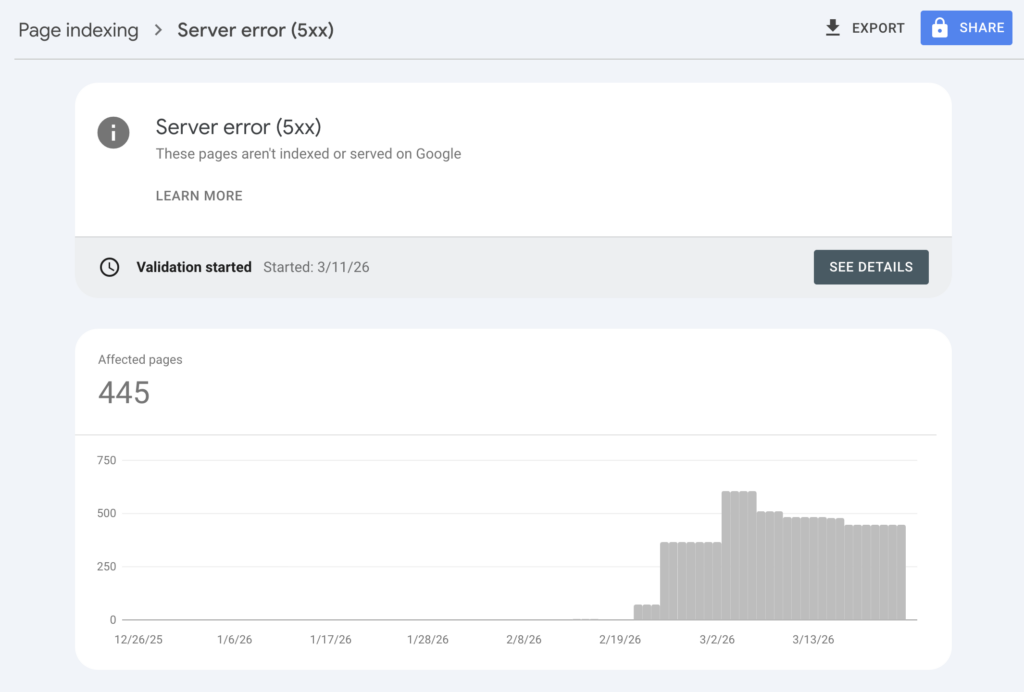
A 5xx status code means your server failed to respond when Googlebot tried to crawl your page. This is a server-side problem, not an issue with Google’s crawler.
Common causes include:
- Resource exhaustion: Your server ran out of memory, CPU, or bandwidth
- Configuration issues: Misconfigured server software (Apache, Nginx) or PHP timeouts
- Database problems: Connection failures or slow queries causing timeouts
- Programming errors: Bugs in your server-side code
The business impact is substantial. When Googlebot encounters repeated 5xx errors, it reduces crawl frequency for your entire site. This means new and updated content takes longer to appear in search results. Widespread server errors can even cause Google to temporarily remove affected pages from the index.
To fix server errors, start by checking your hosting dashboard for uptime logs and resource usage. If the errors correlate with traffic spikes, you may need to upgrade your hosting plan or implement caching. Contact your hosting provider if the issue appears infrastructure-related. Once resolved, use the URL Inspection Tool to request a recrawl of affected pages.
Not found (404) errors
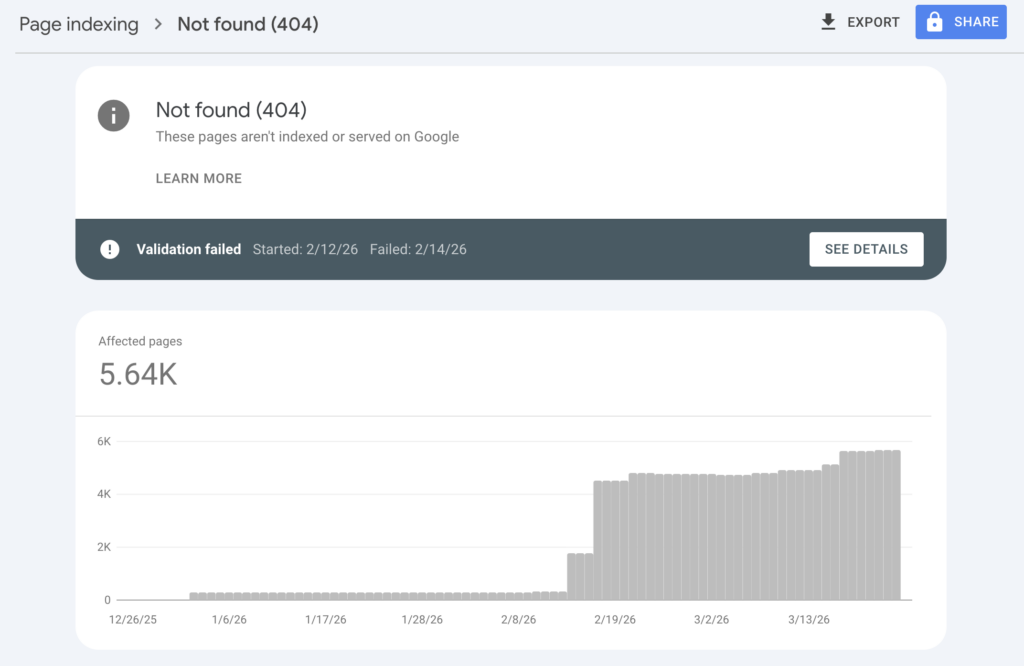
A 404 error means Googlebot requested a page that no longer exists. This happens when you delete content, change URLs without redirects, or have broken internal links.
Not all 404s need fixing. If you intentionally removed a page with no replacement, the 404 is appropriate. Google will eventually stop crawling these URLs. However, 404s become problematic when:
- High-traffic pages return 404s: You’re losing qualified visitors
- Internal links point to 404s: You’re wasting crawl budget and frustrating users
- External sites link to 404s: You’re losing backlink authority
To fix 404 errors, implement 301 redirects for moved content, pointing old URLs to the most relevant current page. Update internal links to point directly to the new URLs. For deleted content without replacements, consider whether a custom 404 page with helpful navigation could recover some of those lost visitors.
Soft 404s
A soft 404 occurs when a page returns a 200 OK status code (meaning “page loaded successfully”) but displays content indicating the page doesn’t exist. Think of a product page that says “Product not found” without returning an actual 404 status.
Google treats soft 404s as problematic because they waste crawl budget. The crawler thinks it found a valid page, processes it, and only later realizes the content is essentially empty. This is worse than a proper 404, which Google recognizes immediately and stops crawling.
To identify soft 404s, look in your Page indexing report under “Why pages aren’t indexed” for the “Soft 404” reason. To fix them, configure your server to return a proper 404 status code for these pages, or add meaningful content if the page should exist.
Indexing issues and how to resolve them
These statuses explain why Google hasn’t indexed specific pages. Understanding the difference between them helps you decide whether to take action or simply wait.
Crawled – currently not indexed
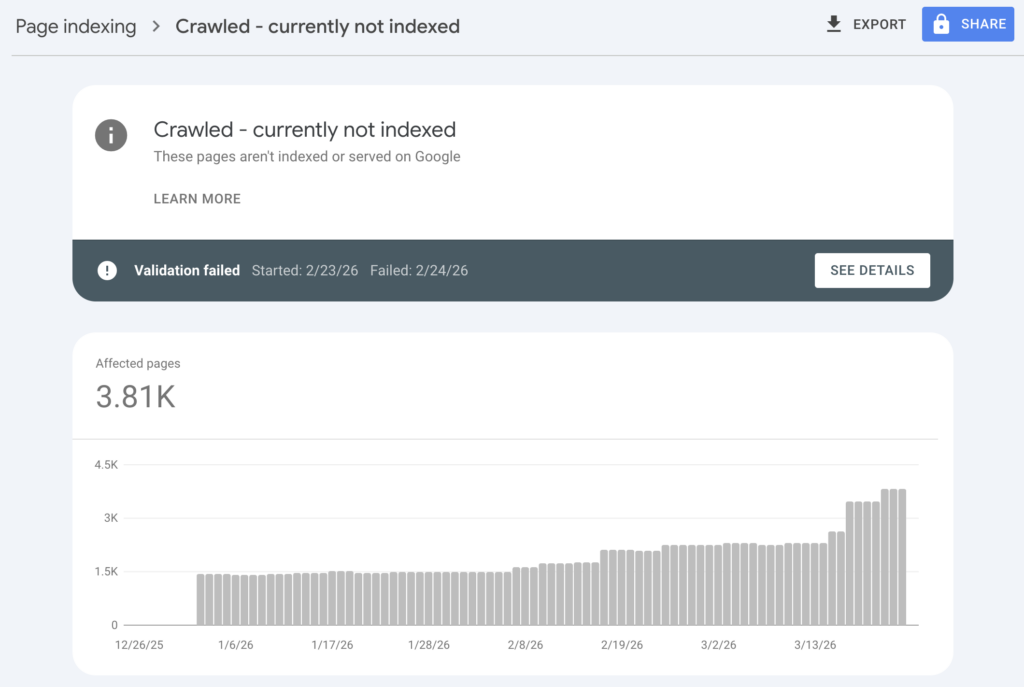
This status means Googlebot visited your page but chose not to add it to the search index. The page is accessible and crawlable, but Google determined it shouldn’t appear in search results.
Common reasons include:
- Thin content: The page lacks substantial, unique content
- Duplicate content: Similar pages exist elsewhere on your site or the web
- Quality issues: The content doesn’t meet Google’s quality thresholds
- Crawl budget constraints: Google prioritized other pages on your site
To address this, improve the page’s content quality. Add unique insights, expand thin sections, and ensure the page provides clear value that differentiates it from similar content. Use the URL Inspection Tool to see exactly what Googlebot sees when crawling the page.
Discovered – currently not indexed
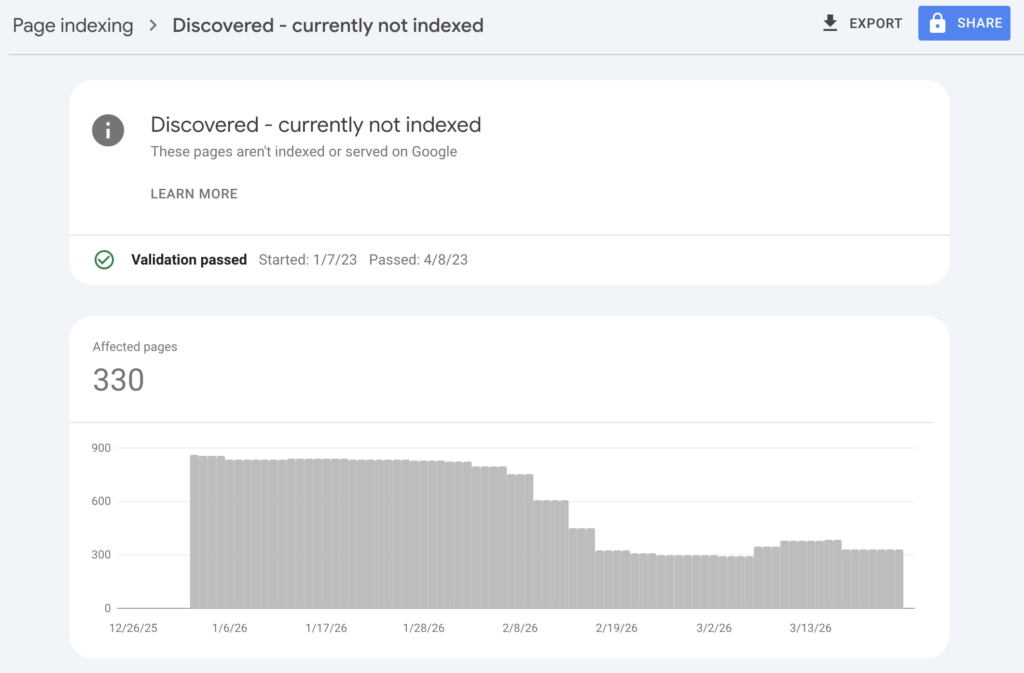
This status means Google knows about the page (likely from your sitemap or internal links) but hasn’t crawled it yet. This is common for new websites or recently added pages.
In most cases, patience is the right approach. Google will crawl the page when crawl budget allows. However, if important pages remain in this status for weeks, you can use the URL Inspection Tool to request indexing manually. Just don’t overuse this feature for every new page. Google prioritizes sites that don’t abuse the request system.
Duplicate without user-selected canonical
When Google finds multiple pages with similar content, it tries to identify the “canonical” version. The canonical is the primary page that should appear in search results. This status appears when Google had to make that decision for you because you didn’t specify a canonical URL.
To fix this, add canonical tags to your pages indicating which URL is the primary version. For pagination, use rel="next" and rel="prev" tags. For URL parameters (like tracking codes or filters), use Google Search Console’s URL Parameters tool or implement canonical tags pointing to the parameter-free version.
Access and redirect issues
These errors relate to how Googlebot accesses your site and navigates between pages.
Blocked by robots.txt
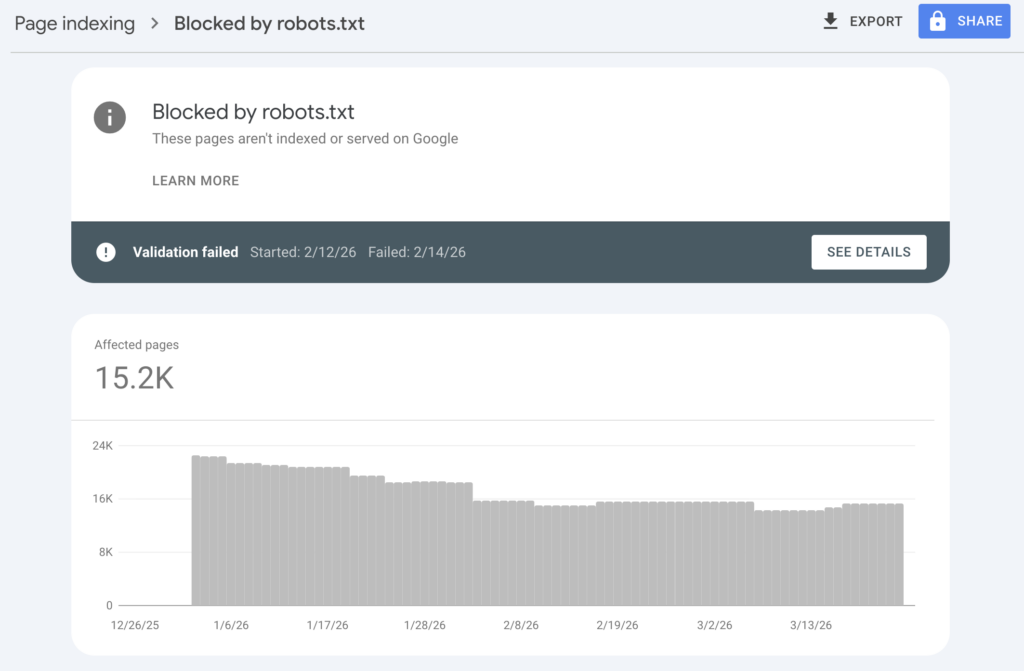
Your robots.txt file tells crawlers which parts of your site they can access. Pages blocked here won’t appear in search results. Sometimes this is intentional, like blocking admin pages or staging environments. Other times it’s accidental, like blocking CSS or JavaScript files that Google needs to render your pages properly.
To review your robots.txt, visit yourdomain.com/robots.txt. Google Search Console also has a robots.txt Tester under Settings that shows which URLs are blocked and why. Never block CSS, JavaScript, or image files unless you have a specific reason. Google needs these resources to understand how your pages look and function.
Redirect errors
Redirect errors include redirect chains (multiple redirects in sequence) and redirect loops (endless cycling between URLs). Both waste crawl budget and can prevent pages from being indexed.
Common causes include:
- HTTP to HTTPS migrations with incomplete redirect rules
- WWW vs non-WWW inconsistencies creating multiple redirect hops
- Trailing slash issues where
/pageredirects to/page/which redirects elsewhere
To fix redirect errors, consolidate chains into single 301 redirects pointing directly to the final destination. Ensure your canonical URL structure is consistent across your entire site. Tools like HTTPStatus.io can help you trace redirect paths and identify problems.
Excluded by ‘noindex’ tag
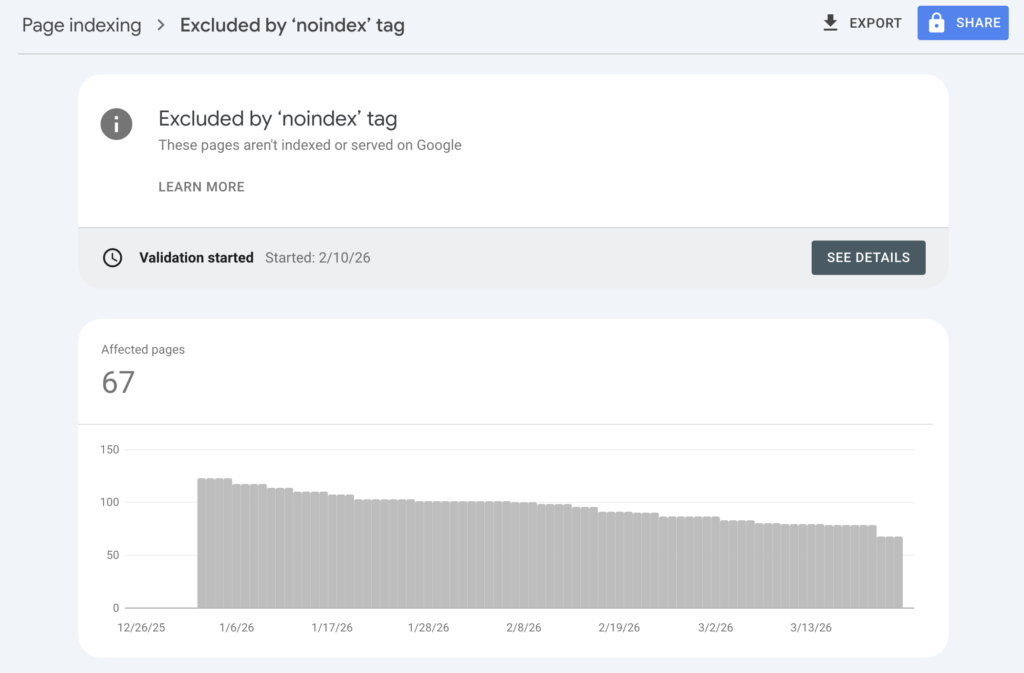
This status means the page has a meta robots tag or HTTP header telling search engines not to index it. This is often intentional for pages like thank-you pages, internal search results, or member-only content.
However, noindex tags sometimes end up on important pages accidentally. This can happen during site migrations, template updates, or plugin misconfigurations. If important pages show this status, check your page templates and meta tag settings. Remove the noindex directive if the page should appear in search results.
These errors may impact AI search visibility
Here’s something most traditional SEO guides won’t tell you: the same technical issues that hurt your Google rankings also damage your visibility in AI search results.
LLMs like ChatGPT, Claude, and Perplexity rely on crawled web content to generate answers. If Google can’t index your pages due to 5xx errors, 404s, or other issues, those pages also won’t be available as training data or citation sources for AI systems. An unindexed page is invisible to both traditional search and AI search.
Crawlability matters even more for AI visibility than for traditional SEO. AI systems prioritize authoritative, well-structured content that they can confidently cite. Technical errors signal poor site quality, which can reduce your chances of being referenced in AI-generated responses.
A practical framework for fixing Google Search Console errors
With limited time and resources, you need a framework for prioritizing which errors to fix first. Here’s the approach we use with enterprise clients.
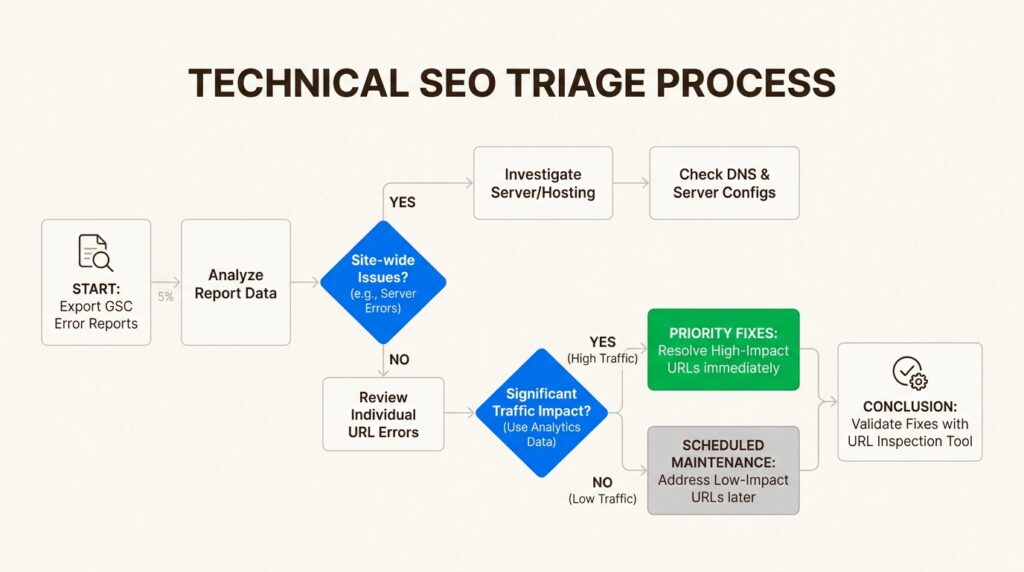
Step 1: Audit and categorize
Export your error lists from Google Search Console. Group them by error type and identify which pages are affected. Cross-reference with your analytics data to understand traffic impact. A 404 error on a page that gets 10,000 monthly visits is more urgent than the same error on a page with zero traffic.
Step 2: Prioritize by impact
Fix issues in this order:
- Site-wide problems first: Server errors, DNS issues, and robots.txt problems affect your entire site
- High-traffic page errors next: 404s and redirect errors on your most visited pages
- Indexing issues on important content: Pages you want ranked but aren’t indexed
- Everything else: Schedule lower-priority fixes for later sprints
Step 3: Validate fixes
After implementing fixes, use the URL Inspection Tool to verify the changes. Click “Test Live URL” to see how Googlebot currently views the page. If everything looks correct, click “Request Indexing” to ask Google to recrawl the page.
Monitor your Page indexing report over the following days and weeks. Google doesn’t update instantly. Validation can take anywhere from a few days to several weeks depending on your site’s crawl frequency and the severity of the issues.
Frequently Asked Questions
How often should I check Google Search Console for errors?
We recommend reviewing your Page indexing report weekly for active sites and monthly for smaller properties. Set up email notifications in GSC to alert you to new issues immediately.
Do I need to fix every 404 error shown in Google Search Console?
No. 404s for intentionally deleted pages without replacements are fine. Focus on 404s for high-traffic pages, pages with external backlinks, and URLs that internal links still point to.
How long does it take for Google to recognize fixes I’ve made?
It varies. Simple fixes like redirect updates might be recognized within days. Indexing issues can take 2-4 weeks to resolve. Use the URL Inspection Tool to request indexing for urgent fixes.
What’s the difference between a 404 error and a soft 404 in Google Search Console?
A 404 error returns the correct ‘not found’ HTTP status code. A soft 404 returns a 200 ‘success’ status but displays content indicating the page doesn’t exist. Soft 404s are worse because they waste crawl budget.
Can Google Search Console errors affect my rankings in AI search like ChatGPT?
Yes. Pages that aren’t indexed due to GSC errors won’t be available as training data or citation sources for AI systems. Technical crawlability is foundational to AI visibility.
Should I hire an agency to fix Google Search Console errors or handle it in-house?
It depends on your team’s technical expertise and the complexity of your site. Simple 404 fixes and redirect updates can often be handled in-house. Site-wide server issues, complex canonical problems, or large-scale indexing challenges typically benefit from experienced technical SEO support.









Leave a Reply